The Short Answer
"Putting an app to sleep" usually means one of two things: force-closing it so it stops running, or stopping it from waking your phone in the background while you're trying to rest. On an iPhone, swipe up from the bottom, pause on the app switcher, then swipe each app card upward to close it. On Android, open Recent Apps and swipe away the ones you don't need, or go to Settings > Apps > [app name] > Battery and restrict background activity. That closes the app. But closing an app is rarely what actually fixes a restless night, and that distinction matters more than most guides admit.
Why "Closed" Apps Still Wake You Up
Force-quitting an app kills its current process. It does not stop push notifications, which travel through Apple's or Google's notification servers and reach your phone whether the app is open, closed, or force-quit. This is the part that trips people up: you swipe away every app before bed, feel like you've done your due diligence, and still get lit up at 2am by a message notification. The app being "asleep" has nothing to do with it. What you actually want to control is notification permissions and background refresh, not the app's running state.
Background App Refresh (iPhone) and Background Data (Android) let apps check for updates on a schedule even when closed. This is what drains battery overnight and occasionally triggers a buzz or a screen flash. Turning this off for social media, news and shopping apps does more for a quiet night than force-quitting ever will.
iPhone: Focus Mode Does the Real Work
Go to Settings > Focus > Sleep, and you can build a schedule that silences everything except calls from people you star as favourites. This is far more effective than manually closing apps because it acts at the notification layer, not the app layer. Pair it with Settings > Screen Time > Downtime, which greys out app icons at a set time so you're not tempted to open them even if you wake at 3am scrolling. Settings > General > Background App Refresh, turned off for anything non-essential, finishes the job. None of this requires touching the app switcher at all.
Android: Bedtime Mode and Battery Restrictions
Android's equivalent lives in the Digital Wellbeing settings. Bedtime Mode dims the screen to greyscale and mutes notifications on a schedule, which works on the same principle as iPhone's Focus: quiet the delivery system rather than the app itself. For background activity, Settings > Apps > [app] > Battery > Restricted stops that specific app from waking the device or syncing overnight. Do this once, per app, for the handful of apps that genuinely have no business running while you sleep, and you won't need to think about it again nightly.
The Mistake Most Guides Make
Most articles on this topic treat every app the same: kill it, restrict it, silence it. That advice ignores the apps you actually want doing something while you sleep. A sleep sound app with the screen off, playing rain and a low drone at 60-70 bpm, is doing exactly what it should. If you force-quit it out of habit, you lose the audio partway through the night and wake up to silence, which for a lot of people is its own kind of jolt. The goal isn't to put every app to sleep. It's to be deliberate about which ones stay awake and why.
The One App Worth Leaving Running
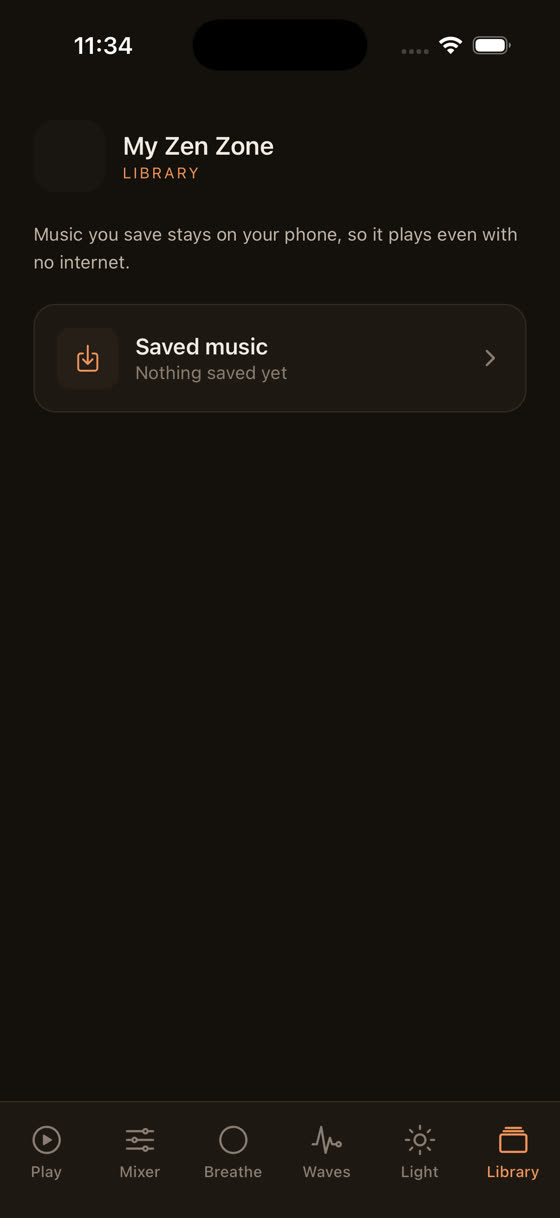
This is where My Zen Zone is built differently from a generic music app. Once you've downloaded a track for offline playback, it needs no network connection and no background data, so restricting background refresh for everything else on your phone won't touch it. The sleep timer stops playback on its own schedule, so you're not relying on force-quitting to end the session, and you're not left with dead silence at 3am either — it fades out on your terms.
The mixer is the other piece. Instead of one fixed track, you set your own balance of layers.
Rain at one level, a low drone underneath it, distant thunder barely audible behind both. That's a different kind of "asleep app" than the ones you're trying to silence: it's doing one job, quietly, exactly as loud as you set it, and nothing else is competing for your attention.
Building an Actual Wind-Down Routine
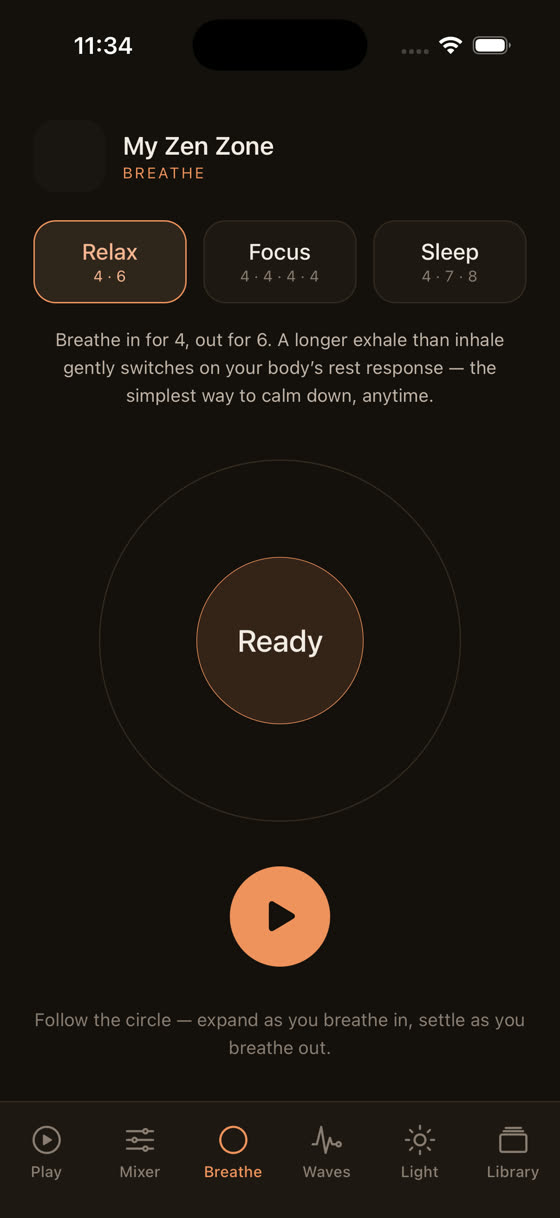
Settings changes only get you halfway. The other half is what you do in the twenty minutes before you put the phone down. A breathing pattern set to a 4-6 rhythm, four seconds in and six out, brings your heart rate down in a way that's easy to feel within a few cycles.
Follow it with something visual rather than another feed to scroll. The light screen is built for exactly this stretch of the evening, a slow-shifting glow with no notifications, no unread counts, nothing pulling you back into the app you were just trying to close.
If you're the type who checks messages one more time before switching off the screen, put your phone in Focus or Bedtime Mode first, then open the wind-down routine. That order matters. Doing it the other way round means you open one calming app while five others are still primed to interrupt it.
What This Has to Do With Daytime, Too
The same logic applies at a desk. Background refresh and stray notifications are just as disruptive to concentration as they are to sleep, which is why the same restrict-and-silence approach shows up in advice on music for focus and study. If you're trying to protect a block of deep work, the app you leave running should be the one playing 60-70 bpm instrumental music with no lyrics, not the one pinging you every four minutes. Quiet the rest, let one thing run.
For sleep specifically, there's more detail on tempo, instrumentation and what the (limited) research actually says in best music for sleep. And if none of your current apps are built for this — if you're using a generic playlist app that keeps notifications live and has no sleep timer worth trusting — it's worth trying one built for the job. Download My Zen Zone and see what a phone with one deliberately awake app, and everything else properly quiet, actually feels like at midnight.
Common questions
Does force-quitting apps actually save battery overnight?
Barely, and sometimes it does the opposite. iOS and Android both manage suspended apps efficiently on their own; force-quitting means the app has to fully reload next time, which briefly uses more power and processing than resuming from a suspended state would have.
Will Do Not Disturb block my alarm too?
No. Both iOS Focus modes and Android's Do Not Disturb are built to let alarms through by default, along with calls from any contacts you mark as favourites or allow through in the settings. Test it once before relying on it overnight.
Why does my sleep app stop playing partway through the night?
Usually background restrictions or battery optimisation are cutting it off, or it's relying on a streaming connection that dropped. Downloading tracks for offline playback and setting a proper sleep timer instead of just closing the app avoids both problems.
Should I turn off Background App Refresh for every app?
Not every app. Turn it off for social media, news, shopping and anything that pings you unnecessarily. Leave it on, or better, use offline downloads, for the one app actually doing something useful while you sleep, like ambient sound or a wind-down routine.